Secure Document Copying at Home: Using the Epson ET-2820 Printer as a Standalone Copier
In today’s digital age, privacy concerns are paramount, especially when handling sensitive or private documents. Many users seek reassurance that their copying and printing activities remain entirely local, without the risk of data being transmitted online. If you own an Epson ET-2820 multifunction printer and are considering using it solely as a photocopier, here’s what you need to know to ensure your documents stay private.
Understanding the Capabilities of the Epson ET-2820
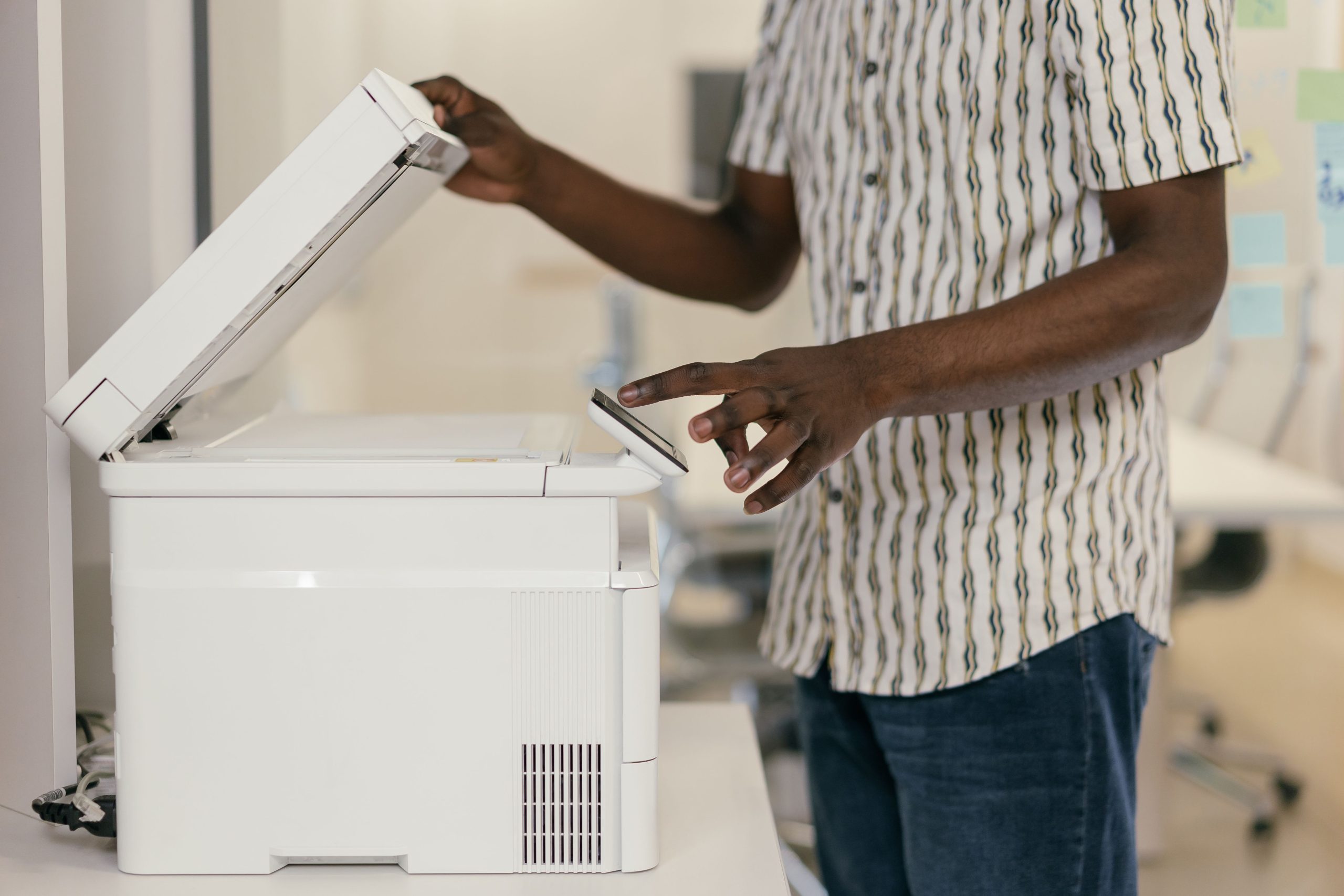
The Epson ET-2820 is a popular all-in-one printer offering printing, scanning, copying, and wireless connectivity. It features a built-in copier, allowing users to make paper copies directly from the device without the need for a computer. This makes it convenient for quick, private copying tasks.
Ensuring Complete Offline Operation
To maximize privacy when copying documents with the Epson ET-2820, consider the following steps:
-
Avoid Connecting to a Computer:
Initiate copying directly from the printer’s control panel without connecting via USB or Ethernet. This minimizes potential data transfer pathways. -
Disable Wi-Fi and Network Features:
Turn off the Wi-Fi capability on the printer before performing your copying tasks. This prevents any wireless communication or remote access, ensuring the device operates solely on local hardware. -
Power Off After Use:
Once your copying session is complete, turn off the printer. Since the device processes copies internally and does not store digital copies of your documents, powering it down effectively erases any temporary data.
Security Considerations
-
Data Storage: The Epson ET-2820 does not save digital copies of your documents during copying; it processes images on the fly. Therefore, the risk of lingering sensitive data on the device is minimal.
-
Network Connectivity: Turning off Wi-Fi and disconnecting from any network commandlines the device to operate in an isolated environment, preventing any online data transmission.
-
Firmware and Settings: Keep the device’s firmware up to date. While updates often improve security, they do not inherently compromise privacy unless specifically designed to do so.
Final Thoughts
Using your Epson ET-2820 as a dedicated, offline photocopier is a practical approach to maintaining privacy with sensitive documents. By operating the device disconnected from networks, performing copying tasks independently, and powering it down afterward, you can have confidence that your private information remains local and is not stored or transmitted elsewhere.
Expert Advice
While the above measures greatly enhance document security, if you handle highly sensitive information, consider additional precautions such as physically securing the device or using dedicated offline copying hardware. When in doubt, consulting with an IT or security professional can provide tailored guidance for your specific needs.
For more tips on securing personal data and optimizing your home office equipment, stay tuned to our blog.